

Skip to the text version of all explanations 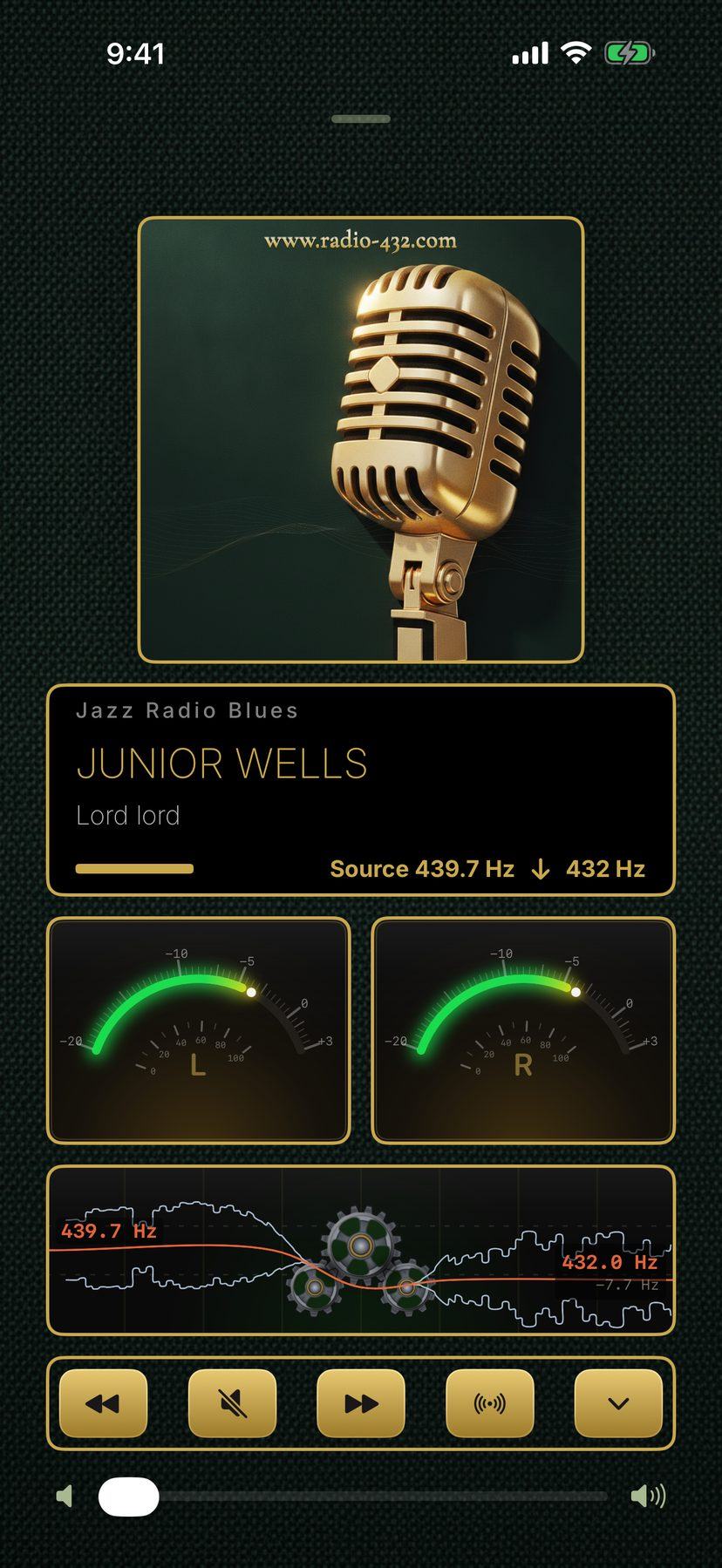

 Scan with your phone
Guide
How to use Radio 432
All explanations as text
Why 432 Hz?
Music is mostly tuned to 440 Hz today – a convention, not a law of nature. 432 Hz is a slightly lower, older tuning. Some people prefer it. Whether you like it is something you can hear for yourself: Radio 432 lets you switch at any time.
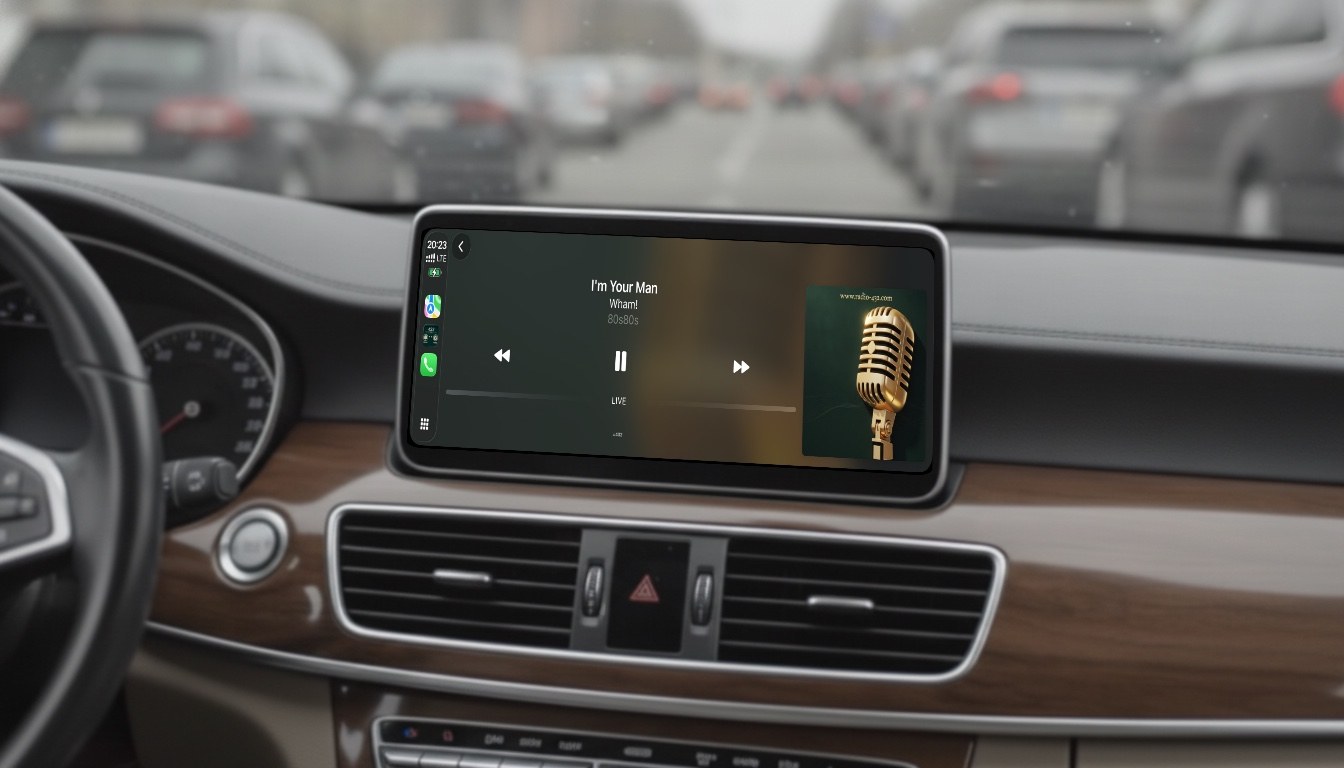
Radio 432 runs on the iPhone, on the Apple TV and in the car. Tap the orange dots in the picture and read what is behind them – or step through them in order with “Next”.
Phone
Player
- Album art or the app’s own image This is the image that goes with the station. If you switch off “Load Station Logos” and “Load Album Art” in Settings under “Privacy & Info”, the app shows its own image instead, as here.
- Station and title The station name is at the top, below it title and artist, as the station reports them.
- Source → target Radio 432 listens to the music that is playing and measures how it is tuned. This value is on the left, your target frequency on the right. The arrow shows the direction. Instead of “Source” you may see something else there:
Source 439.7 Hz
: This is the tuning of the sound that is playing, as the app has just measured it.Frequency Memory 440.0 Hz
: This is not a new measurement but a value remembered for this station; it stays there until a measurement is available. Values are remembered for stations you start from your favorites.Measuring frequency
: The app is currently working out the tuning of the sound that is playing.no reading yet
: The measurement has not produced anything reliable yet, so the app does not show a number.
- Volume display The two displays (VU meters) show how loud the signal is on the left (L) and on the right (R) at the moment. There are six styles; you choose which one you see in Settings under “Visualizer”.
- Frequency Gearbox The gearbox shows what is happening: the measured tuning on the left, your target on the right, the orange line in between. If the measured tuning changes by more than 25 cents (a quarter of a semitone), the sound jumps to the new value. Smaller changes are followed gradually, at no more than 1 cent per second. The gearbox is the default style of the “Spectrum Analyzer” under “Visualizer”. Tap the gears: you now hear the original sound. Tap again – and the music is tuned to your target frequency once more.
- Switch at any time Tap the gears: you now hear the original sound. Tap again – and the music is tuned to your target frequency once more. You can do this at any time, on the iPhone and on the iPad.
If you follow another device in Multi-Room, the tap has no effect. The app then shows the note “In Multi-Room, the leading device sets the tuning.”
- Mute instead of pause A radio station can’t be paused. The middle button mutes. When you switch it back on, the app reconnects and you hear the live stream again. In the mini player and in CarPlay the button shows a pause symbol but does the same thing. The arrows on the left and right jump to the previous or next favorite. If a station is playing straight from the search, the arrows are greyed out.
- Several rooms This button opens the device picker “Multi-Room Sync”. Devices on your home network find each other by themselves as long as Radio 432 is open on them. When you pair, the source device asks with “Request to listen in”: check that both devices show the same comparison code and tap “Allow”. The approval is valid for 90 days from the last connection. One of the devices is the host and plays, the others listen along. Each room sets its own volume.
- Minimize player The down arrow does not close the player, it minimizes it: the music keeps playing, and a mini player with title, target frequency, and pause and stop buttons stays at the top of the screen. Tap it to open the player again.
Search
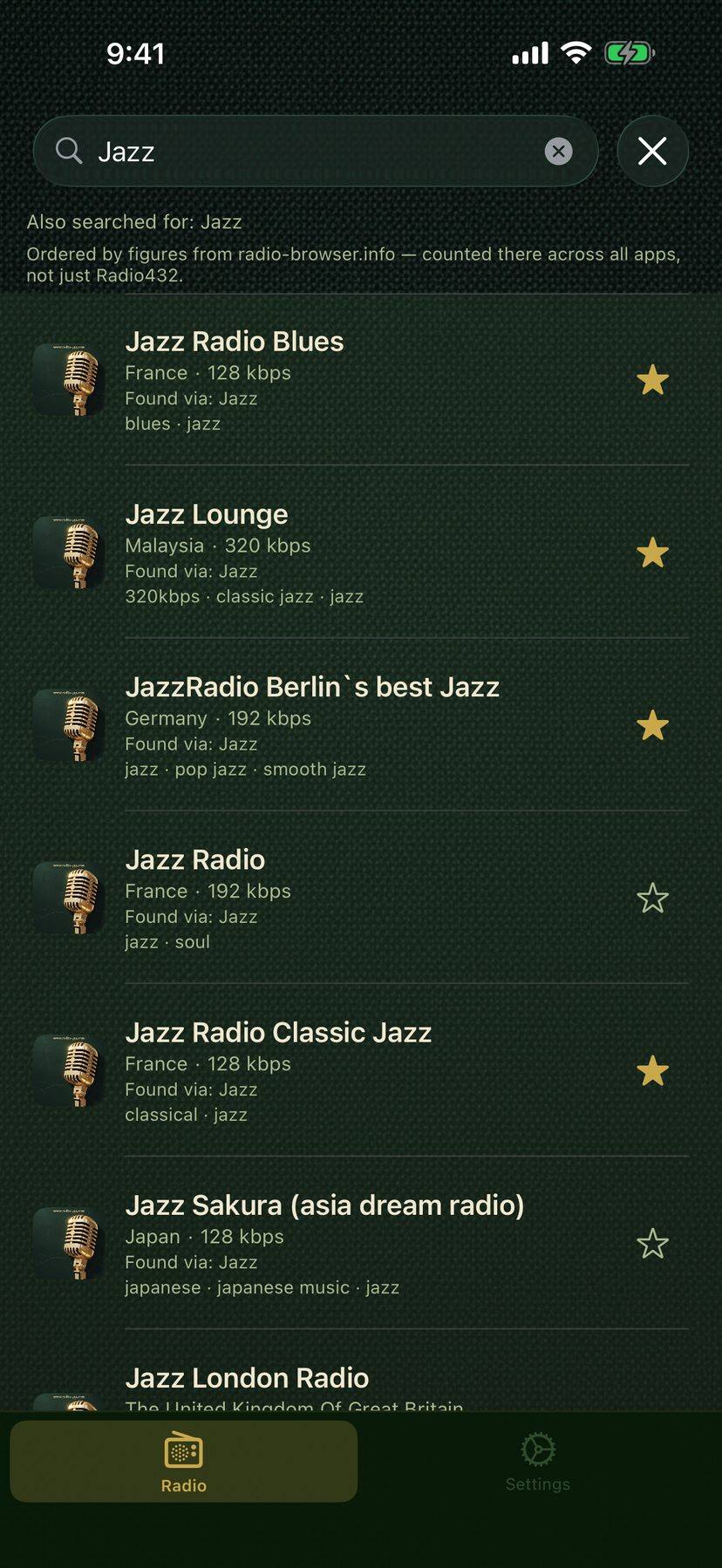
- Find stations Type a station name or a keyword, for example “Jazz” or “Rock”. The order of the words does not matter. The results come from the open directory radio-browser.info.
- Result list Each result shows country, quality and keywords. Tap a station and it starts playing.
- Save a favorite Use the star to save a station as a favorite. Favorites travel to your other devices through iCloud and are also ready in the car.
- Radio and Settings At the bottom you switch between Radio and Settings. The settings contain Design, Visualizer, Playback, Privacy & Info and System.
Devices
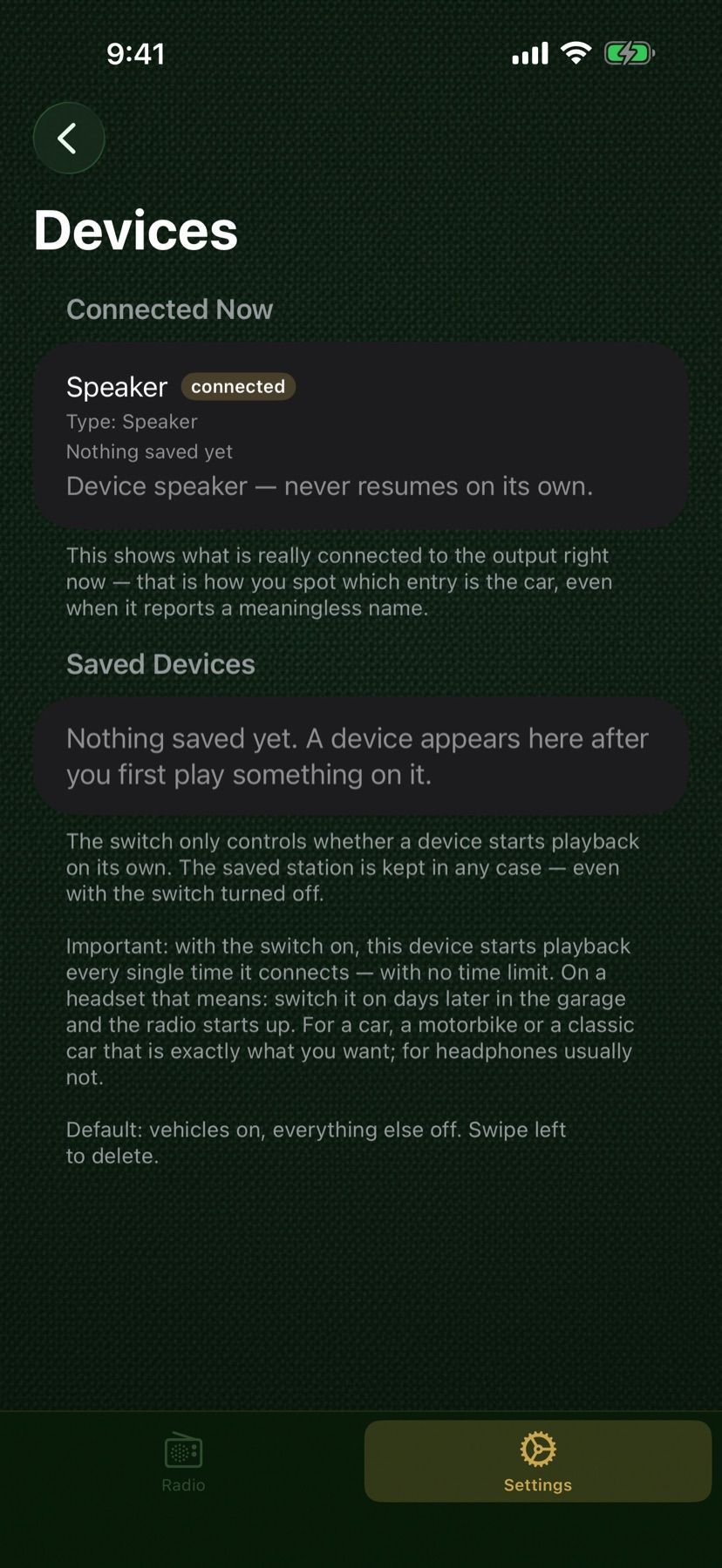
- Connected Now This shows what playback is currently connected to, for example a speaker, headphones or the car. That is how you spot which entry is your car, even if it has a meaningless name.
- Saved Devices After you first play something on a device, it appears here. For each device you choose whether playback starts by itself (“Resume Automatically”). That is meant for a car, a motorbike or a classic car, usually not for headphones. To delete an entry, swipe left.
You find this page under Settings → Playback → “Devices & Automatic Resume”. The main switch “Auto-Play on BT Connection” has to be on.
- Back The arrow takes you back to the settings overview.
Apple TV
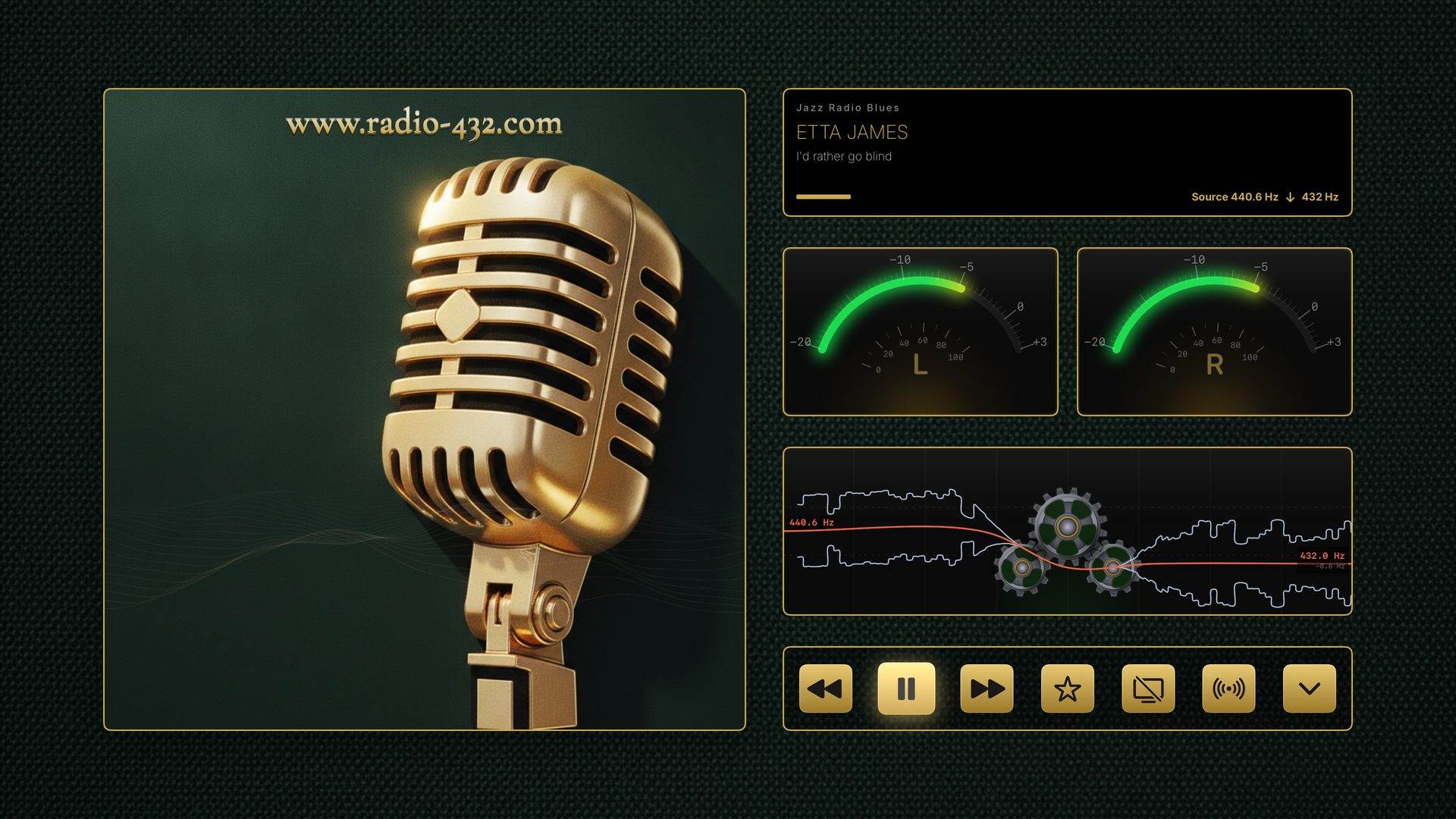
- Station, title and frequency The same display as on the phone, only on the TV: station, title and the “Source → target” line. The app has its own interface for this, which you operate with the remote.
- Frequency Gearbox On the TV, too, the gearbox shows which measured tuning the app is moving from to reach your target frequency. It is display only; you can switch on the iPhone or iPad.
- Control bar You operate the bar with the remote: previous, play, next, favorite, a switch for the screen saver, Multi-Room and minimize.
- Multi-Room The Apple TV fits well into the group: the devices find each other on the home network and play together. TVs, receivers and speakers delay the sound by different amounts. The app only takes into account the delay that the device itself reports; it cannot know what is connected behind it, for example a soundbar linked wirelessly.
CarPlay
- How Radio 432 gets into the car Connect your iPhone, and the Radio 432 icon appears on the CarPlay screen. Your favorites are in the “Radio” tab.
- What is playing Title, artist and station are shown on the car screen – you do not have to touch your phone. You manage favorites on the iPhone. There is no free-text search in CarPlay.
- Previous, pause, next You operate the buttons directly on the car screen.
- Target frequency A small badge shows your target frequency. A tap on it switches between the original and your preset; in the original, the button reads “Orig”. Retuning works in the car just as it does on the phone.
Radio 432 in the App Store
Get the app and try it with your favorite station.
Scan with your phone